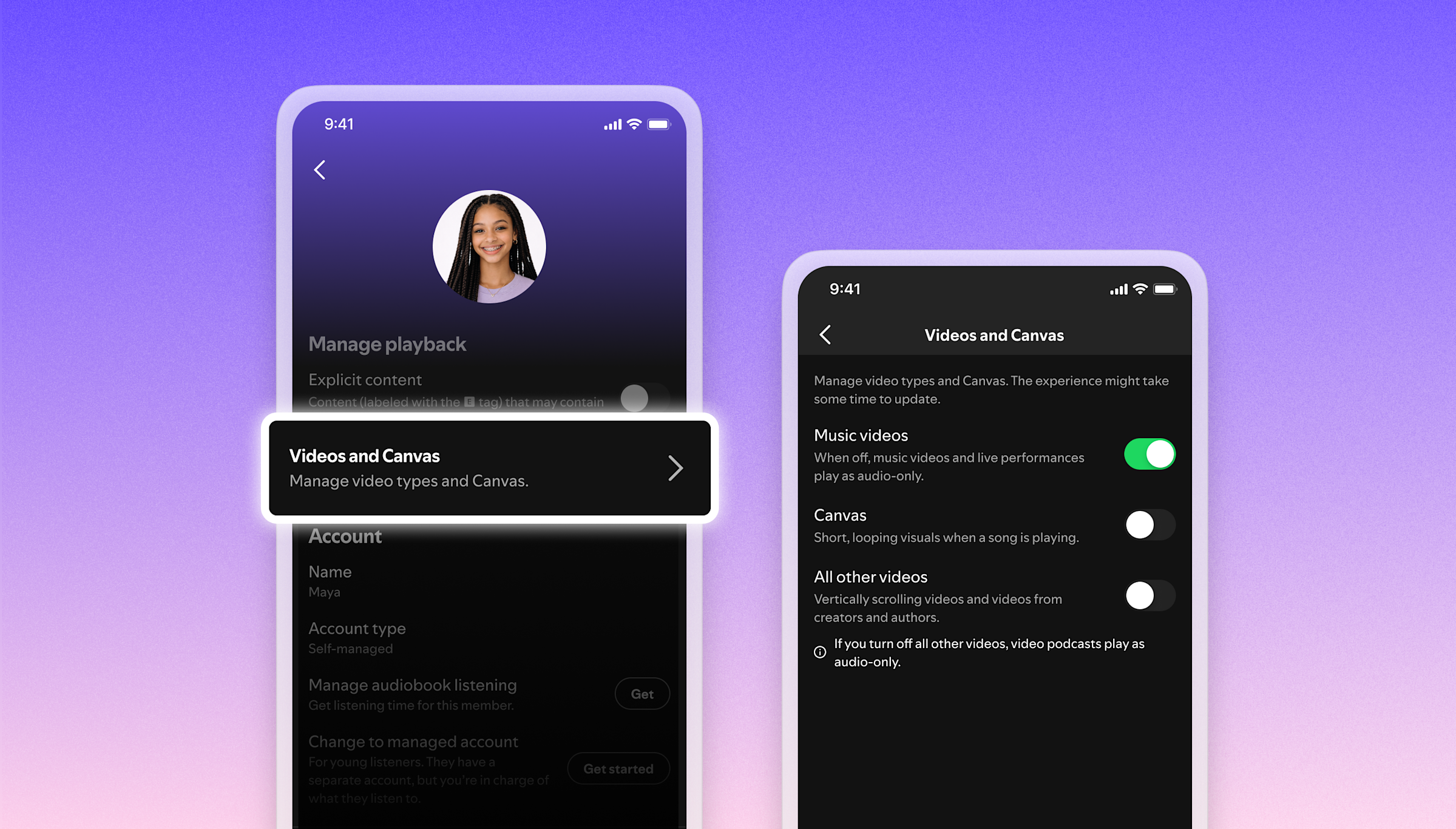
Spotify has rolled out new video settings that let users separately disable Canvas animations, music video playback, and other video content including video podcasts, vertical videos, and artist clips. The update gives users direct control over which types of video appear during regular app use.
The controls appear under Settings > Content and display on both mobile and desktop. Preferences sync across all linked devices once configured. Family plan administrators can apply video preferences for every member on the plan, not just their own account.
What each toggle covers
Canvas, the looping clip that plays behind album artwork on the Now Playing screen, has had a toggle since the feature launched in 2018, though it was not always easy to locate in the settings menu. It now appears alongside the two new additions in a single consolidated location.
Music videos, which Spotify launched in limited form in 2024 and completed a US rollout for in late 2025, get their own switch. The third toggle covers everything else: video podcasts, vertical videos, and artist clips.
Before this update, there was no single place to remove all video from the experience. The new structure puts every control in one menu, replacing an arrangement where the Canvas toggle lived separately from other video settings.
Why the controls are arriving now
Spotify’s video library has expanded steadily since Canvas launched in 2018. Video podcasts arrived in 2020, starting with select creators before rolling out broadly. Music video support grew through 2024 and 2025. Artist clips and vertical video formats have since joined, adding more content that surfaces automatically during normal use of the app.
The company has cited internal survey data showing more than 70% of its users say additional video improves their experience. That figure has backed the continued expansion. The same data, though, puts a significant portion of Spotify’s user base in the category of people who do not want video at all, and the new settings address that group directly.
As Spotify’s video library has grown, more of it appears by default to users who open the app as a music player. The toggle update gives those listeners a clear way to change their experience, without the platform having to alter how it works for everyone.
How to find the settings
The controls are live for all users now. Navigate to Settings > Content and display on mobile or desktop to access them. Turning off a category removes that content type across all platforms, and Spotify confirms the setting persists across devices once saved. Family plan administrators can apply the same changes across all accounts from their plan settings page.