Last verified: April 2026. Product availability and pricing may change.
A good gaming setup does more than look cool in the background of a stream. The right desk, chair, monitor placement, and lighting can reduce fatigue, improve reaction time, and make long sessions far more comfortable. Whether you are starting from scratch or upgrading an existing room, this guide walks through every part of building a gaming space that works for you.
Choosing the right desk for your gaming setup
Your desk is the foundation of everything. It needs to be wide enough for your monitor (or monitors), deep enough for a keyboard and mouse with room to spare, and sturdy enough to handle clamps for monitor arms or microphone booms.
Aim for a minimum width of 120 cm (about 47 inches) and a depth of at least 60 cm (about 24 inches). These dimensions give you enough surface area for a single monitor, a full-size keyboard, a mouse pad, and a few accessories without feeling cramped. If you plan to run dual monitors or use a wide ultrawide, go wider. Desks in the 140 cm to 160 cm range offer the most flexibility.
Standing desks have become a popular option for gamers who spend long hours at their stations. Electric sit-stand desks from brands like FlexiSpot, Uplift, and IKEA (the BEKANT and UPPSPEL lines) let you switch between sitting and standing throughout the day. This can help reduce back strain and keep energy levels up during marathon sessions. Look for desks with memory presets so you can save your preferred sitting and standing heights.
Material matters too. Solid wood and bamboo tops are durable and look good on camera. Particle board desks work fine on a budget, but avoid anything that feels flimsy when you press down on the edges. A wobbly desk will transfer vibrations to your mouse sensor and make precise aiming harder than it needs to be.
Chair recommendations by budget
A good chair is the single most important investment for anyone who games for more than a couple of hours at a time. Poor posture leads to back pain, neck strain, and fatigue. The right chair supports your spine, keeps your feet flat on the floor, and lets you adjust the seat height, armrest position, and recline angle.
| Budget tier | Price range | What to expect | Notable options |
|---|---|---|---|
| Budget | $150 to $250 | Basic lumbar support, tilt lock, adjustable height, mesh or fabric upholstery | Hbada office chair, HON Ignition 2.0 |
| Mid-range | $300 to $500 | Better lumbar adjustment, 4D armrests, denser foam or full mesh back, longer warranty | Secretlab Titan Evo Lite, Autonomous ErgoChair Pro |
| Premium | $500 and up | Full ergonomic adjustment, high-density mesh, headrest, extensive tilt range, 10+ year warranty | Herman Miller Aeron, Secretlab Titan Evo, Steelcase Leap |
At the budget level ($150 to $250), look for chairs with adjustable lumbar support and a seat height range that works for your desk. Avoid “racing style” chairs at this price point, as most sacrifice ergonomic design for aesthetics.
The mid-range tier ($300 to $500) is where chair quality takes a noticeable jump. Chairs from Secretlab and Autonomous in this range typically offer 4D armrests (adjustable in four directions), better foam density, and build quality that lasts several years.
Premium chairs ($500 and above) from Herman Miller, Steelcase, and Secretlab’s top-end line provide the best long-term comfort and durability. The Herman Miller Aeron remains a top pick among streamers and esports professionals for its mesh design, adjustability, and 12-year warranty. These chairs cost more upfront but last significantly longer than budget alternatives.
Monitor positioning and ergonomics
Where you place your monitor affects your neck, eyes, and overall comfort during long sessions. Follow these three rules for proper positioning:
Distance: Sit at arm’s length from your screen. For most people, this means the monitor should be roughly 50 cm to 70 cm (20 to 28 inches) from your eyes. If you use a larger screen (32 inches or above), push it back slightly.
Height: The top edge of the screen should sit at or just below eye level. When you look straight ahead, your eyes should naturally land on the upper third of the display. This prevents you from tilting your head up or down, which causes neck strain over time.
Monitor arms: A desk-mounted monitor arm is one of the best upgrades you can make. Arms free up desk space, allow precise height and angle adjustments, and make it easy to push the monitor back when you need more room. Brands like Ergotron and Amazon Basics offer reliable single and dual monitor arms in the $30 to $150 range. Make sure your desk can handle the clamp pressure before installing one.
| Monitor size | Recommended distance | Ideal resolution |
|---|---|---|
| 24 inches | 50 to 60 cm | 1080p |
| 27 inches | 60 to 70 cm | 1440p |
| 32 inches | 70 to 80 cm | 1440p or 4K |
| 34 inches (ultrawide) | 70 to 85 cm | 3440×1440 |
If you wear glasses or have vision issues, adjust the distance until text on screen is sharp without leaning forward. Comfort always overrides general guidelines.
Lighting that works for gaming and streaming
Lighting in a gaming space serves two purposes: reducing eye strain and setting the right atmosphere. Bad lighting is one of the easiest problems to fix and one of the most commonly ignored.
Bias lighting: Place an LED strip behind your monitor. This reduces the contrast between the bright screen and the dark wall behind it, which lowers eye fatigue during long sessions. A simple USB-powered LED strip in warm white or neutral white does the job. BenQ also sells monitor light bars (the ScreenBar series) that illuminate your desk without creating glare on the screen.
Avoid overhead glare: Ceiling lights that reflect off your monitor create distracting bright spots. If you have an overhead light in your gaming area, either dim it, replace it with an indirect light source, or position your monitor so the light does not hit the screen directly. Diffused or indirect lighting from the side or behind the monitor is always better than a bright overhead fixture.
RGB lighting: RGB strips, light panels from Nanoleaf or Govee, and backlit peripherals are purely for aesthetics. They do not improve performance, but they do make a gaming space feel more personal. If you stream, colored accent lighting behind your setup adds visual depth to your camera feed. Keep it subtle. A wall of flashing rainbow lights can be more distracting than appealing.
Cable management basics
Loose cables dangling from your desk look messy and can get caught on your chair or feet. A clean cable run also makes it easier to swap out peripherals or rearrange your setup later.
Start with a cable tray. These mount under your desk and hold power strips, adapters, and excess cable length out of sight. J-channel cable raceways work for routing cables along the back edge of a desk or down a wall.
Use velcro ties instead of zip ties. Velcro is reusable and does not risk cutting into cable insulation when you pull it tight. Bundle cables that run the same direction together and route them along desk legs or the back panel.
Under-desk routing keeps the floor clear. Adhesive cable clips attached to the underside of your desk hold individual cables in place. For power cables, run them through a cable sleeve or spiral wrap from the desk down to the nearest outlet. The goal is to have no visible cables when you look at your setup from the front.
Acoustic basics for gaming and streaming
Sound matters whether you are gaming with a team, recording content, or just trying not to bother the people in the next room.
Headset vs. speakers: For competitive gaming, a good headset wins every time. Headsets provide directional audio cues that speakers cannot replicate, and they keep your game audio from bleeding into a microphone. For single-player games or casual use, desktop speakers or a soundbar work fine. Many players keep both and switch depending on the situation.
Foam panels for streaming: If you record audio or stream, hard walls and flat surfaces create echo and reverb that make your voice sound hollow. Acoustic foam panels placed on the wall behind and beside your desk absorb reflections and tighten up your audio. You do not need to cover the entire room. Four to six panels on the nearest walls make a noticeable difference. Brands like Auralex and various options on Amazon sell affordable starter kits.
A cheaper alternative to foam panels is a thick blanket or curtain hung behind your desk. It is not as effective, but it helps in a pinch.
Optional upgrades worth considering
Once your core setup is in place, these additions can take it further:
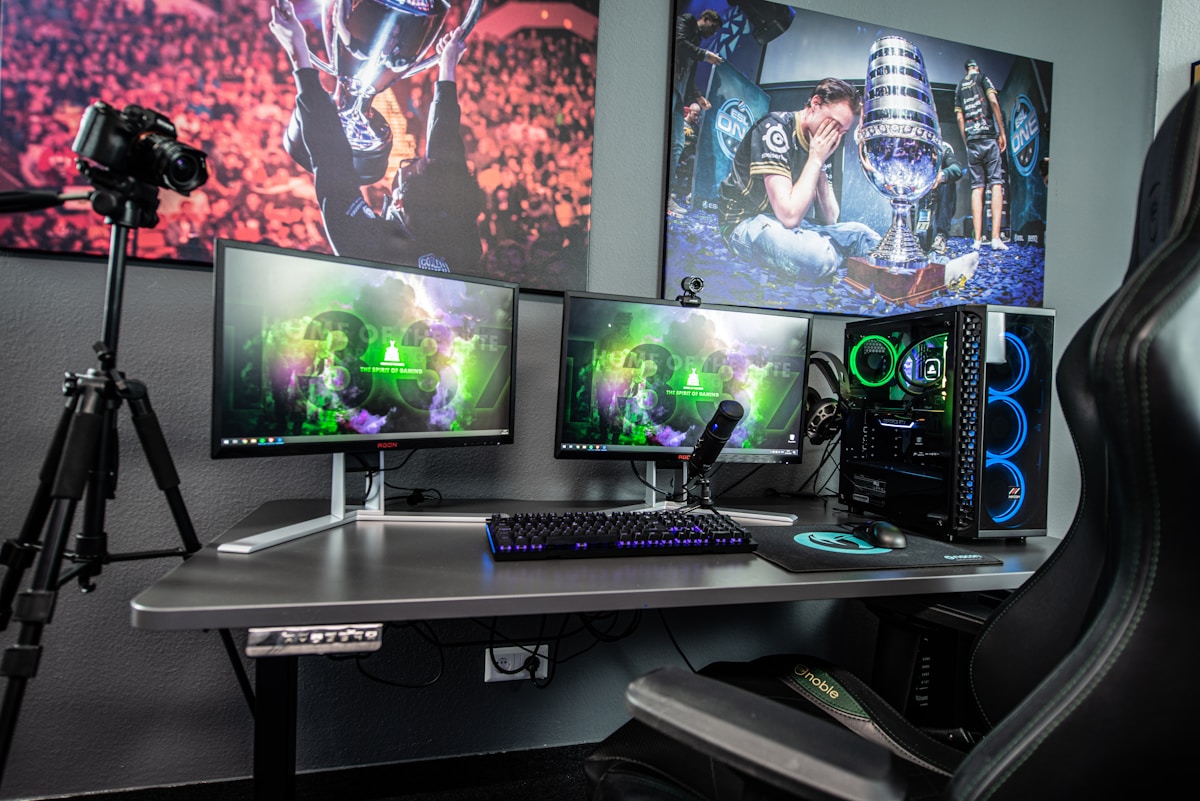
Dual monitors: A second screen is a productivity and streaming game-changer. Use it for chat, music, Discord, or a browser while gaming on your primary display. Match the mounting height and angle so you are not constantly twisting your neck. A dual monitor arm keeps both screens aligned and adjustable.
Stream Deck: The Elgato Stream Deck gives you programmable buttons for switching scenes, muting audio, launching apps, and triggering effects. It is not just for streamers. Many gamers use it to create macros, control media playback, or manage smart home devices from their desk.
Webcam: Built-in laptop cameras are not good enough for streaming or video calls from a desktop setup. The Logitech C920 remains a solid budget option, while the Elgato Facecam and Sony ZV-1 (used as a USB camera) cover the mid-range and premium tiers. Mount your webcam on top of your primary monitor at eye level for the most natural angle.
Microphone for streaming: A USB microphone like the Blue Yeti or Elgato Wave:3 delivers a noticeable audio quality jump over headset microphones. Pair it with a boom arm to keep it close to your mouth but out of your line of sight. If you plan to do serious streaming or podcasting, an XLR setup with an audio interface (like the Focusrite Scarlett Solo) offers more control over your sound.
Frequently asked questions
How much does a full gaming setup cost?
A basic but functional gaming space (desk, chair, monitor, and peripherals) can be put together for around $600 to $800. A mid-range setup with better ergonomics, a monitor arm, and decent lighting runs $1,200 to $1,800. Premium setups with top-tier chairs, dual monitors, streaming gear, and acoustic treatment can exceed $3,000. The PC or console itself is a separate expense.
Do I need a standing desk for gaming?
You do not need one, but it helps. Standing for even 15 to 20 minutes per hour reduces the strain of sitting all day. Electric sit-stand desks let you switch positions without interrupting your session. If a standing desk is outside your budget, a good chair with proper lumbar support is the more important investment.
What is the best monitor size for gaming?
For competitive FPS games, most esports players use 24 to 27 inch monitors at 1080p or 1440p with high refresh rates (144 Hz or higher). For single-player and open-world games, a 27 to 32 inch display at 1440p or 4K provides a more immersive experience. Ultrawide monitors (34 inches and above) are excellent for simulation games and productivity but are not allowed in most competitive settings.
How do I reduce eye strain during long gaming sessions?
Use bias lighting behind your monitor to reduce contrast between the screen and your surroundings. Follow the 20-20-20 rule: every 20 minutes, look at something 20 feet away for 20 seconds. Adjust your monitor brightness to match the ambient light in your room. Night mode or blue light filters built into Windows and macOS can also help during evening sessions.